El Commodore 64 como sintetizador [MIDI] polifónico multitimbre

El propósito de este proyecto es contruir un sintetizador polifónico multitumbre con el chip SID del Commodore 64, procurando cumplir tres requisitos:

1. Que se pueda tocar como un instrumento con cualquier teclado MIDI, conectándolo al puerto de usuario del C64 a través de una interfaz hecha con Arduino.
2. Que sea lo más estándar posible, con soldaduras reducidas al mínimo, y sin taladrar ni abrir el C64.
3. Y que sea lo más económico posible: sólo hace falta un viejo Commodore 64, un controlador Arduino y unos pocos componentes electrónicos. Lo más caro va a ser el lector de tarjetas SD SD2IEC drive, necesario para cargar el programa, a menos que esté usted dispuesto a teclearlo a mano.
Demos

https://www.youtube.com/watch?v=LIM-qxfz80c
https://www.youtube.com/watch?v=1uZN-MvJpxM


Aviso importante

Mis conocimientos de electrónica son muy elementales.
No puedo garantizar que no se vaya a quemar algún chip durante este proyecto. Sólo puedo decir que he pasado varias horas quitando y poniendo cables, tanto en Arduino como en el C64 y nunca se estropeó nada. Antes de ponerme a trastear leí toda la información que pude encontrar en la red, así que esta tarea previa de documentación es el único consejo que puedo dar para evitar accidentes. Cualquier medida de seguridad que se pueda añadir a esta sección será bienvenida. No asumo ninguna responsabilidad por cualquier desperfecto que pueda ocurrir como resultado del proyecto.

Antes de este proyecto nunca había soldado y tuve que practicar un poco hasta conseguir soldaduras firmes y limpias en el conector del puerto usuario (enlace en alemán)
.

Este fue el primer intento, bastante mugriento, aunque funcionó bien de todos modos.
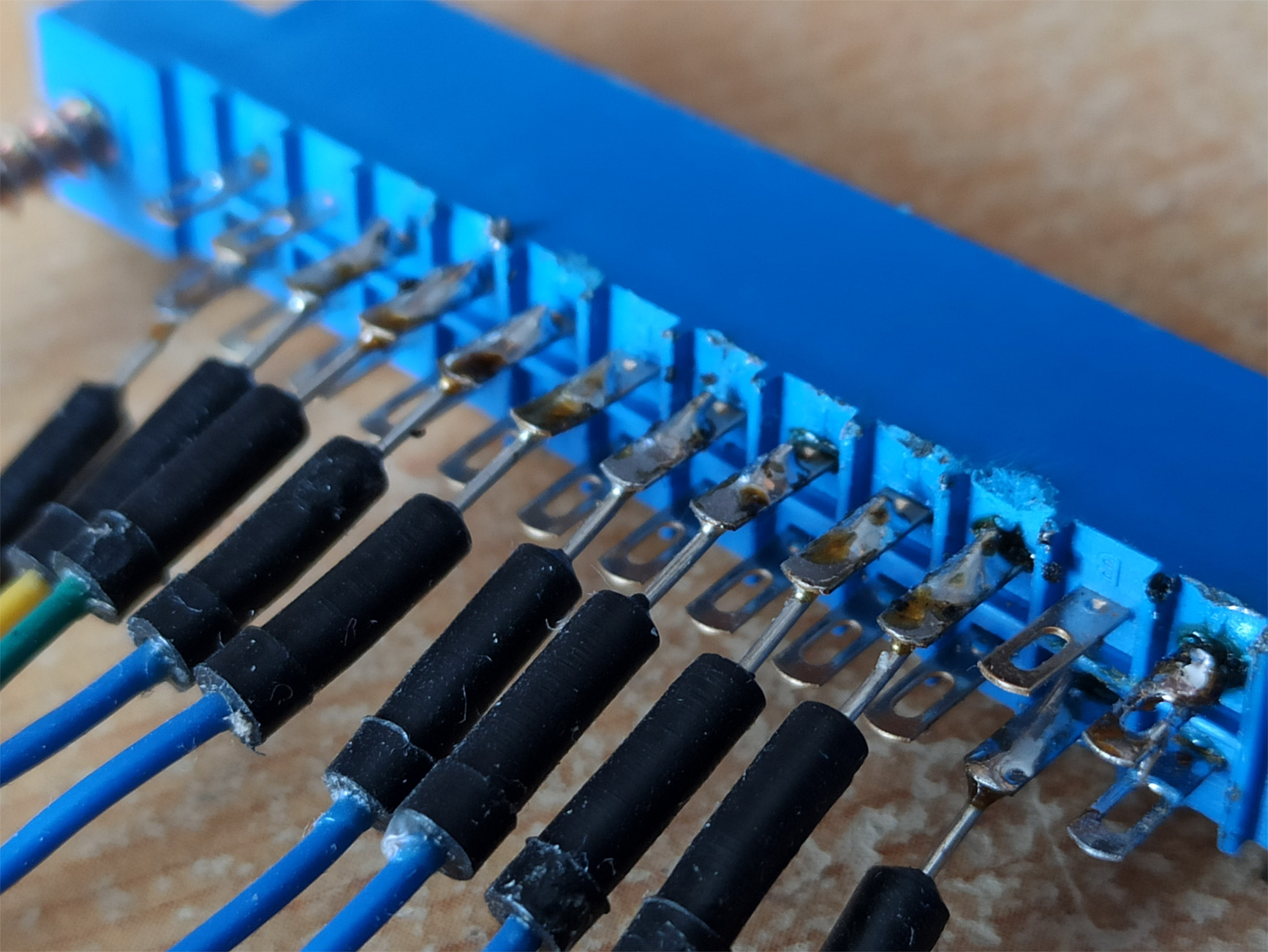


Después conseguí hacerlo sin quemar el soporte de plástico.


Para este proyecto no se deben usar pilas como fuente de alimentación del Arduino. Digo "no se deben", pero en realidad no estoy seguro, así que es una medida de precaución. En otros proyectos usé una pila de 9V conectada al pin Vin de Arduino, pero no sé si esto podría dañar de algún modo al C64. Lo cierto es que en este proyecto Arduino ha funcionado perfectamente con los 5V que proporciona el puerto de ususario del C64. Otra alternativa que probé fue quitar los cables de 5V y GND que conectan el Arduino con el C64 y darle corriente al Arduino con un cable USB conectado al PC. Funcionó bien, aunque sólo utilicé esta variante durante unos minutos.

Here or here you can see the Commodore 64 user port pins.

During the development I've used different setups with two Commodore 64 C (this model has the
8580 SID), an Arduino UNO and Arduino Nano, and they all worked fine. I'm using Arduino Nano now due to lack of space on my desk. I’ve never tried it with a Commodre 64 equipied with the 6581 SID, but it should work as well (feedback on this will be appreciated).
In the internet you can find MIDI in/out schematics, and how MIDI data are sent/received in Arduino. For this project only MIDI IN is required, which is a bit more complicated than OUT, but pretty easy to build anyway.


Parts
General
● Breadboard: 2 split power buses, 10 columns, and 63 rows (see the pic below).
● Jumper wires in different lengths.
● Solderering iron
User port connector (English)

For the MIDI circuit
● MIDI connector
● 220 Ohm 1/4watt resistor
● 1N4148 diode
● 10k Ohm 1/4 watt resistor
● 470 Ohm 1/4 watt resistor
● 6N138 optocoupler

Other parts
● 3 x Pushbuttons (optional*)
● 3 x 10 K resistors (optional*)
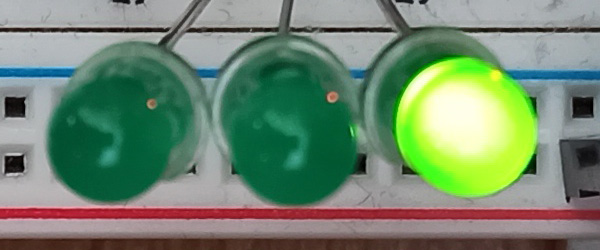
● 3 x LEDs. I've used green, but I assume other colors should work as well.
● 1 x 1 K resistor for the 3 LEDs. I used 2 x 470 Ohm resistors in series instead. It is also possible to use a single 470 Ohm resistor, all depends on how much light you want the LEDs to emit.

* These parts are used to switch among modes and functions by pressing pushbuttons, but you can also use control changes from your MIDI controller to do it. See Keyboard modes. In fact, I recommend not to use them, since the less parts the circuit has, the less potential bugs the software will have. I started to use them only as part of my learning process. At any rate, they have worked well.

There are two arduino sketches:
1) The one to use with these push buttons, which works with MIDI CCs as well: download PolyTimb64_220309.ino
2) The one to use without the push buttons (only MIDI CCs): download PolyTimb64_220309_sin_pb.ino

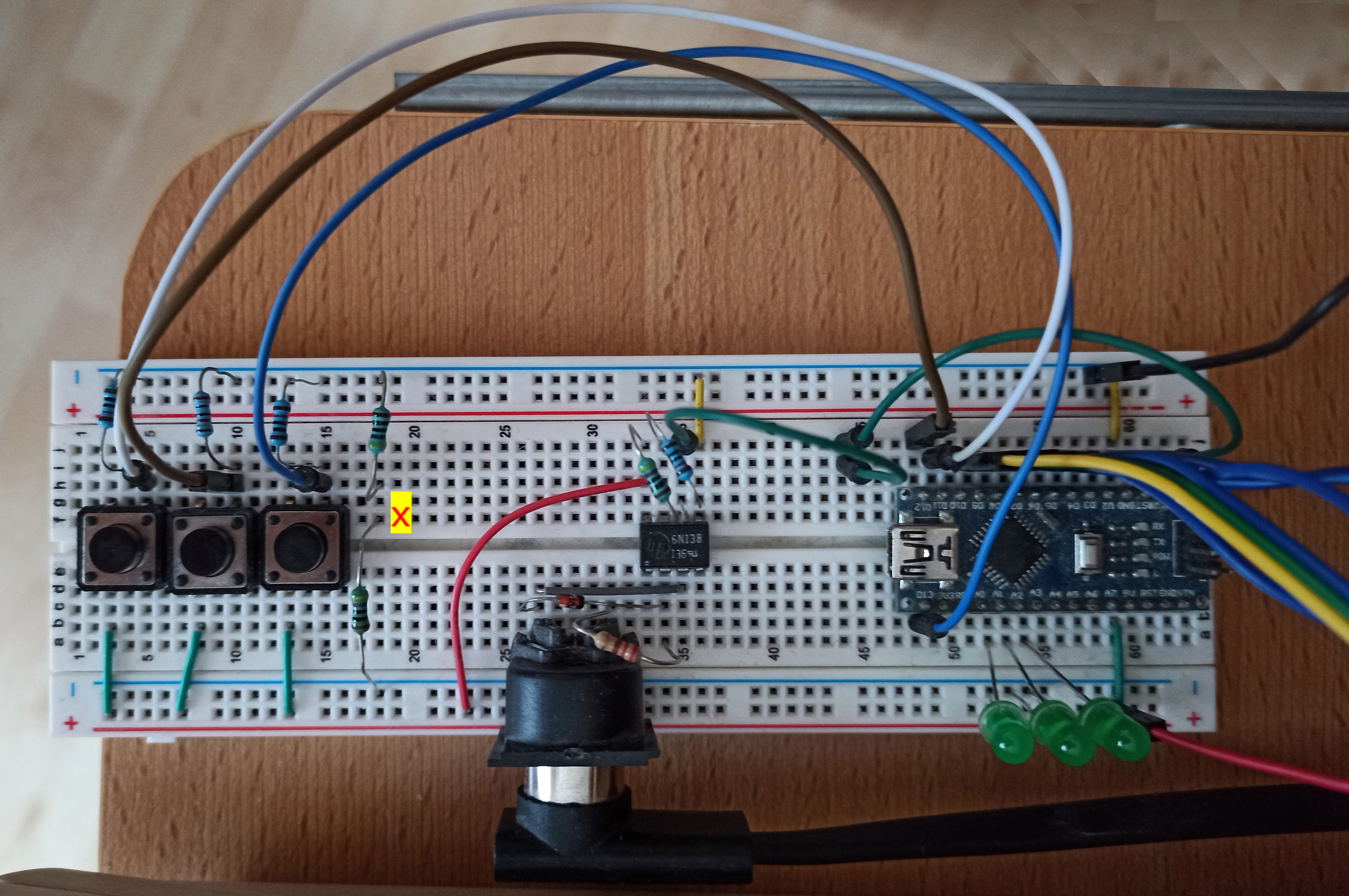
Below is the schematics and a pic.
Please notice that in the schematics the 8 bits in Arduino are assigned from right to left (0 to 7) to the digital pins 2 to 9, while in the user port (viewed from outside) these 0 to 7 bits are assigned from left to right to the pins C to L.


I marked as
X the only parts that aren't placed 1:1 in the schematics and the picture: I'm using two 470 Ohm resistors instead one 1 K and they are placed on the left of the MIDI connector, while in the schematics they are on its right.


And so looks it like without the puhs buttons.
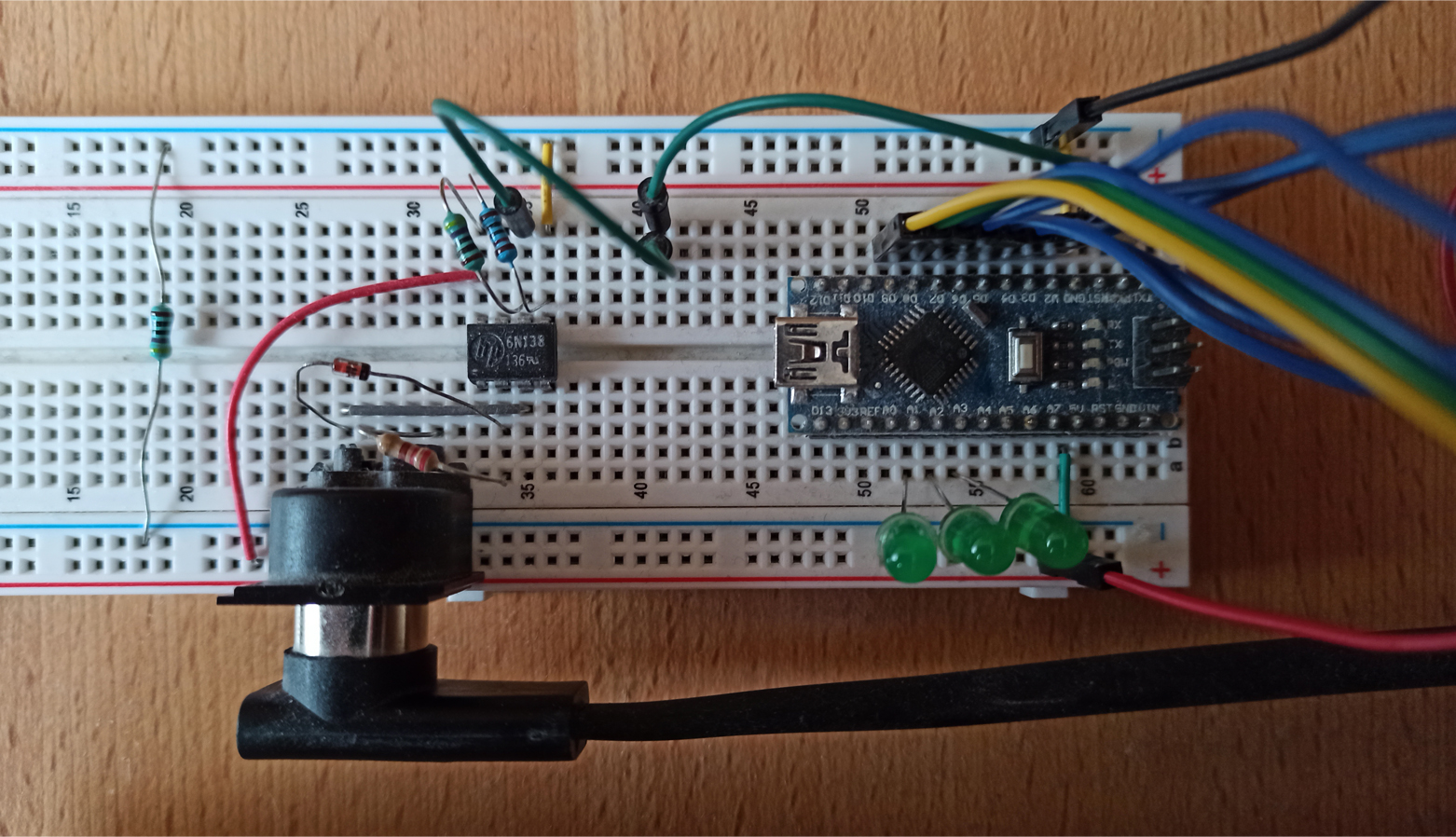


Now follow these steps:
• Build the circuit.

• Upload one of the sketches in Arduino. When uploading it, please don't forget to unplug the MIDI IN wire that goes to the RX pin in Arduino. These are the two green wires in the pic above (I used two as it's easier to connect and disconnect). Once the upload is completed, plug the RX wire again.
     At this point you can perform a quick check: connect your MIDI controller to the MIDI connector in the breadboard and press and release some keys. Any time you press a key, the Arduino built in LED should briefly blink, and the same should happen when you release the key. If this is not the case, something went wrong with the sketch upload or some parts aren't properly connected in the circuit.

• Connect Arduino to the C64 user port.
Both Arduino and C64 must be off. Actually, Arduino will always be off when the C64 is. Once the hardware is connected, you can also upload the sketch while the C64 is on, but in some cases this can cause lock ups.

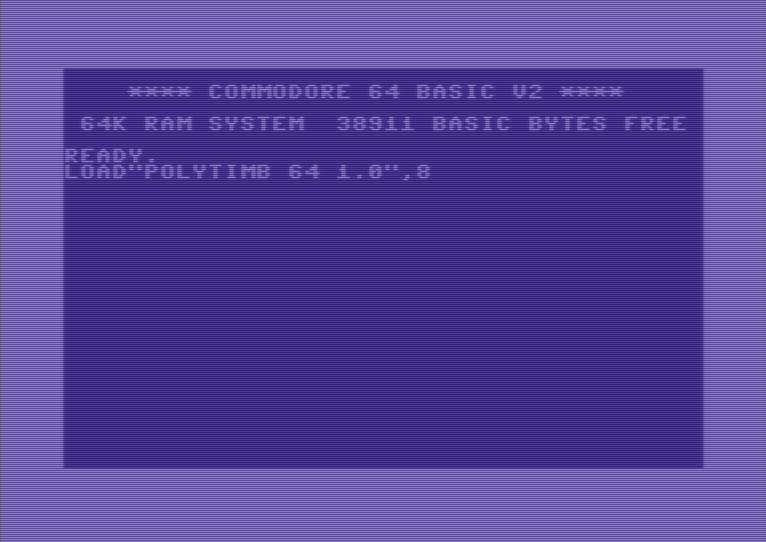
• Turn the C64 on and load the program typing LOAD"POLYTIMB 64 1.0",8. You can download it here, transfer it to a SD card and read the file using an
SD2IEC drive. Or you can load the program in a PC emulator, read it on screen and type in the C64; this is tiresome and can cause lots of bugs by mistyping the code, but it is an option.


The Basic code is a spaghetti mess and the user interface is not very friendly, but it works. You'll see some gargabe characters I've been using as a kind of visual debug to pin down what's going on in the machine language routines. Some day I'll clean it up. The machine language code is pretty optimized and clean though.

Once the program is running, please be careful when entering data. Values out
of the range 0-255 aren't checked for validation when you enter them and will cause an ILLEGAL QUANTITY ERROR. In that case, you'll have to restart the program.

At any rate, all SID's paramaters can be edited and you can save and load patches.
The keyboard can be divided in two parts, each of which can carry one or two of the 3 SID voices. If not split, the whole keyboard carries the 3 voices (full polyphony). There are 6 different modes (see below).

 Polyphony modes and keyboard split
(MIDI CCs or push buttons)

There are three functions you can control with control changes from your MIDI controller or with push buttons from the Arduino circuit.

1. Switches ciclicaly among the 6 modes: 1 > 2 > 3 > 4 > 5 > 6 > 1. This is CC #97 or the push button connected by the white wire.
2. Shifts ciclicaly the keyboard's split point, one octave to the right: C4 > C5 > C6 > C2 > C3 > C4 [verificar]. Once you reach the rightmost point, the next position will be the leftmost one again. This is CC #96 or the brown wire.
3. Toggles left / right the two parts of the split keyboard. This is CC #66 or the blue wire.

If you want to use other control changes, you can search for 97, 96 and 66 in the Arduino sketch and change them for other values.

1
3 independent voices/oscillattors: Full polyphonic, you can play up to 3 notes at the same time all along the keyboard.
2
Voice 1 on one half of the keyboard, voices 2 and 3 coupled on the other half: you can play one note on each half of the keyboard. In one half of the keyboard, voices 2 and 3 are triggered at the same time when you press a key; you can detune the voices or synchronize or ring modulate voice 3 by voice 2.
3
Voice 1 plays "pseudochords" on one half of the keyboard, voices 2 and 3 are played independently on the other half. The pseudochords allows you to play up to four notes at the same time on one part of the keyboard; those notes are played actually like an arpeggio, and when played fast enough, they sound almost like a chord (a well known effect you have heard in many games).
4
Voice 1 plays "pseudochords" on one half of the keyboard, voices 2 and 3 coupled on the other half.
5
Voice 1 on one half of the keyboard, voices 2 and 3 not coupled on the other half. This is similar to mode 1, but you can use different sounds in two separates parts of the keyboard (multitimbral). Or you can use the same timbre in both halfs, but making sure that the notes on one half never override the notes being played in the other half.
6
3 voices coupled. This is a monophonic synth with 3 oscillators. You can detune any of them, synchronize or ring modulate to each other.


Once you run the program, you will be prompted if you want (Y/N) to read the data for the machine language code and the tables used by it. You have to select "Yes" the first time. If for some reason you have to restart the program without having turned the computer off, you can bypass this by selecting "No" and save some time. You might need to restart the program if you have entered a wrong value when editing a patch or pressed Run/Stop by mistake. The program is still in development and it's not very user friendly in this sense.

Things that can't be done (yet) and bugs that I'm going to fix in future versions:

----------------------------------------------------------------------
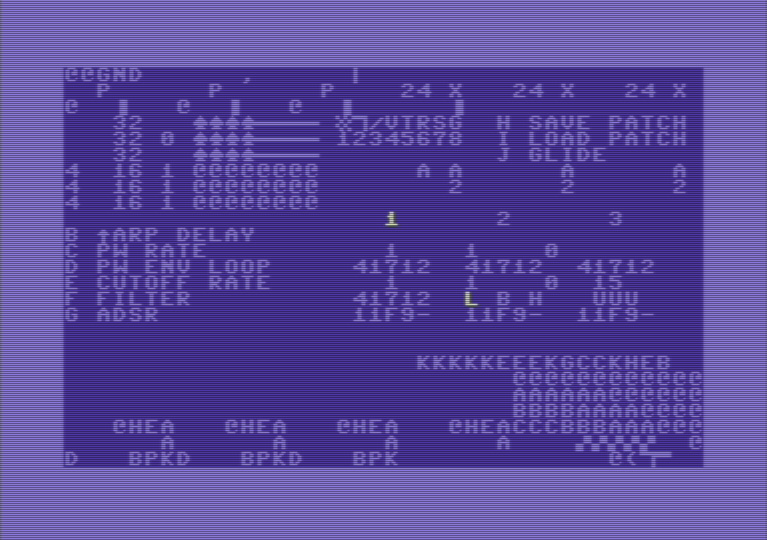
Once you RUN the program and all data are read, the main menu will appear:

The numbers 1, 2 and 3 in the middle of the screen stand for the three voices.

The number highlighted in white is the voice currently selected, which can be changed by pressing the keys 1, 2 and 3. Some parameters can be edited only for one voice each time, so you have to select first the voice you want to edit. These parameters are PW ENV LOOP (option D), ADSR (option G) and the oscillator tuning, located top right:

With the cursor up/down key you can increase or decrease the pitch by 12 semitones (one octave) and with the right/left key 1 semitone more or less.

This main screen contains the only menu you'll use to edit all settings. At this point, you can perform a first sound test: by pressing the space bar key, you'll enter the play mode. You'll see some charachters rapidly changing on screen, and if you press keys on your MIDI keyboard, you should be able to hear the notes. The default mode is polyphonic, so there must be possible to play up to three notes at the same time. By pressing the Return key you'll be back at the edit mode; any character should stop changing on the screen.

By pressing the keys A to K you can access the following options. Only B to J are visible on the menu.

A

Wave tables and arpeggios editor (see option K)

 
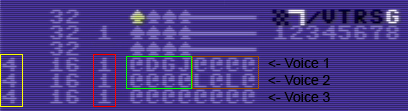
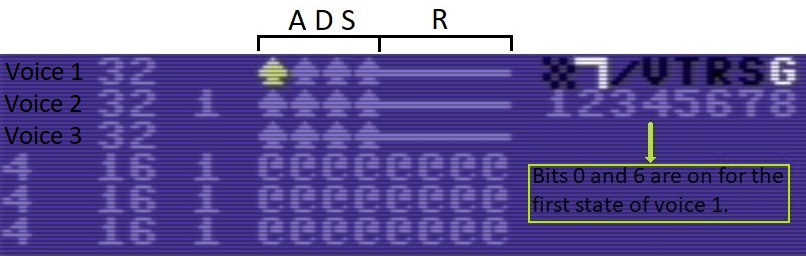
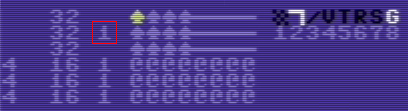
This is the most complex section, containing several parameters explained below. The three upper rows
54276 ($D404) Voice 1   
54283 ($D40B) Voice 2 

54290 ($D412) Voice 3


are the waveforms editor, wich basically represents
a sequence of four states in the registers 54276, 54283 and 54290. These SID's registers determine the oscillators' waveforms, as well as the synchronization and the ring modulation effects and the gate state. Each character stands for a state of the register at a time unit. All 8 bits can be switched on/off independently.


The numbers 1 to 8 stand for the keys you have to press, but when I refer to bits they are numbered from 0 to 7 and from right to left.

Function Noise Square Saw tooth Triangle Test Ring
modulation
Synch. Gate
Key 1 2 3 4 5 6 7 8
Bit 7 6 5 4 3 2 1 0


The first 4 states are swept in a loop from left to right during the ADS phase (when you press a key in the MIDI keyboard) and the last 4 states are swept the same way in the R phase (when you release the key and the sound starts to fade out). By combining different waveforms within the same phase, distorted and metallic sounds can be generated.


The three lower rows

are the arpeggios editor.

B Arpeggios speed  Sets the speed at wich arpeggios are swept. Arpeggios can be set as fixed in the arpeggios editor or as pseudochords in real time, as you play several notes simultaneously (keyboard mode 3 and mode 4). Valid values are in the range from 1 to 128. 
C Pulse width sweep speed, square LFO on/off 

This synthsizer uses two software generated LFO to modulate the cut off frequency and the square waveform pulse width, respectively. Although the SID can use the third oscillator's output to hardware generate an LFO, I left out this built-in LFO, as it works at the price of giving up the sound of voice 3.

Polytimb 64 actually features three independent LFOs to modulate the PW in each of the three voices, but for the time being I'm using the same LFO for the square waveform of all voices.

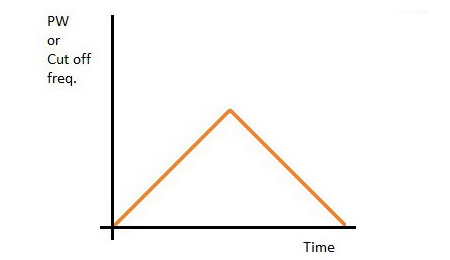
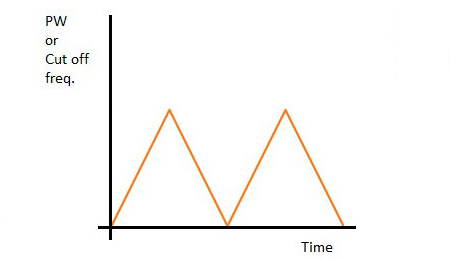
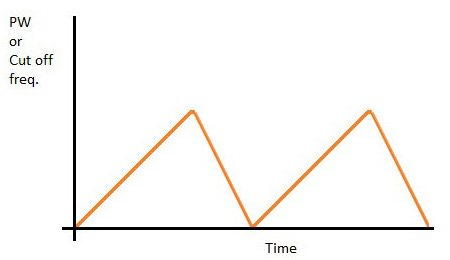
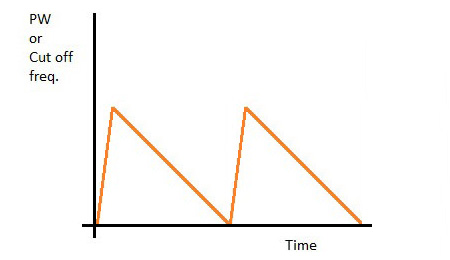
The first value determines the speed of the ascending sweeping through a PW defined range (see option D). The second value does the same for the descending sweeping. This is like routing the PW through a LFO.

 
Enter "1,1,0"  Enter "2,2,0" 
   
Enter "1,2,0"  Enter "8,1,0" 
   
D Pulse width envelope/loop 

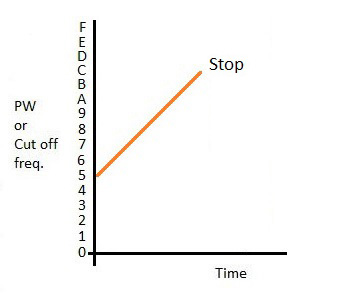
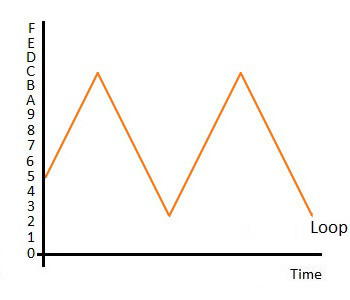
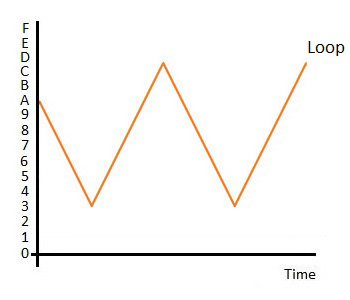
This controls the LFO as well as a kind of primitive envelope for the PW by determining the starting, highest and lowest PW levels (first, second and third digits, respectively). The fourth digit sets the initial direction of the PW sweep (1 = ascending, 0 = descending) and the fifth digit sets if the PW stops sweeping once it reaches the lowest/highest point for the first time (0), if it stops after reaching a second lowest/highest point (1), or if it keeps on sweeping up and down indefinitely between the lowest and highest levels.

For the first three digits the range is between 0 and F: for the sake of simplicity only the most significant byte of the PW can be selected by the user. However, the PW sweeps all along the least significant byte (at the speed defined in option C).

In this settings, the values are entered with keys 0 to 9 and A to F, shifting the selected digit left and right with the cursor keys. Hitting the Return key confirms the selected values and T copies the selected values to the PW envelopes of all voices.

Enter "5C210"

The third digit, "2", is not relevant
 in this example.

Enter "5C211"

Enter "5C212" Enter "AD302"
E Filter cut off sweep speed, square LFO on/off, filter resonance  This is the same as option C but for the filter cut off frequency. In addition to the three values explained in (C) you have to enter here a fourth value between 0 - 15 for the filter resonance. For instance, "1,1,0,15" stands for 1 sweep speed up, 1 for sweep speed down, no square LFO and 15 (maximal) resonance.
F Filter cut off envelope/loop  Same as option D, but for modulating the filter cut off frequency. Since the SID cut off frequency is 11 bits long, the maximal value you can enter here for the first three digits is 7 instead of F.
G Volume ADSR

This is the amplitude envelope generator. Unlike options D and E, this is a hardware feature of the SID: registers 54277 (attack/sustain) and 54278 (sustain/release) for oscillator 1, registers 54285 and 54286 for oscillator 2, and registers 54291 and 54292 for oscillator 3. The values are entered by pressing the keys 0 to F; the left and right cursor keys shift the selected digit, the Return key confirms the entered values and the T key copies them to all three voices.

There is a known bug in the SID chip, which prevents, for certain ADSR values, the attack to start properly, so you can't hear any sound when you press a note key. More about this here.
H Save patch   
I Load patch   
J Glide speed

This sets how fast (1 = fastest, 255 slowest) a note's pitch increases or decreases when you press a key on the keyboard. Three values separated by comma must be entered, one for each voice. Very slow glide speeds let hear "steps" along the pitch variation, but for most "normal" speeds you'll hear a continuous, smooth glide.

In order to the glide effect to be effective, it has to be set to one of the three ON modes. With the keys F1 (voice 1), F3 (voice 2) and F5 (voice 3) you can sequentially select:
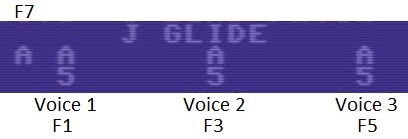
@ Glide off
A Glide on downwards: starting from an octave lower than the note played on the keyboard and gliding up to the actual note.
B Glide on upwards: starting from an octave higher than the note played on the keyboard and gliding down to the actual note.
C

Glide on from the last note played.

In this mode, with F7 you can set wheter the glide from one note to another will take place from different parts of the keyboard (A) or only within one of the split parts (@), provided that you are using one of the split keyboard modes (2, 3, 4 and 5)


K

Wave tables speed

Enter a delay value for each voice, separated by comma, to determine how fast the sequence of waveforms is read in a loop (the higher, the slower). More about this here.
L  Enter POKEs manually [Funciona, pero lo vamos a dejar en blanco.]


Waveforms / Arpeggios editor

Once you press the A key in the main menu, you enter this area, with the cursor on the middle of the top row.
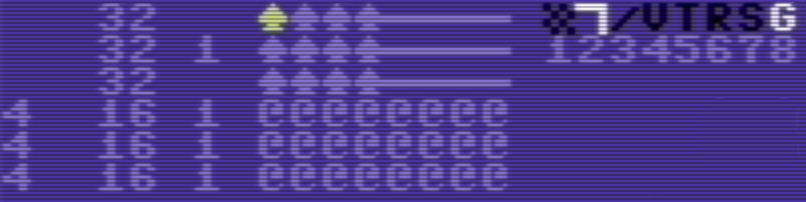
Here you can edit a number of paramaters with the following keys:


Filter settings

With the following keys you can switch on and off which voices routed through the filter and what type of filters you use:

WIn the example below, the low pass filtered is selected, voices 1 (U) and 2 (U) are routed through the filter while voice 3 (@) is bypassed.


Troubleshooting

The most frequent problem I had were notes that didn't stop to sound when I released the key on the piano. And the most common cause behind this problem were low batteries in the MIDI controller. It's advisible to use a power supply or make sure that batteries are fully loaded.

Check that all wires and parts are properly soldered or inserted in the breadboard.

To pin down some problems you can check the board as explained before. Any time you press a key, the Arduino built in LED should briefly blink, and the same should happen when you release the key. If this is not the case, something went wrong with the sketch upload or some parts aren't properly connected in the circuit. If the LED blinks but the C64 doesn't produce any sound, then the problem lies somewhere between Arduino and the C64.